
Set targets
Apply a metric to one subject and period, then define the expected value.
Open Metric Target → 1 - Create KPI (intake). A target applies a metric to a subject and period. Start with a complete metric from Define metrics.
Pick the metric
In Step 1 - Pick the metric, add a record and link Metric. Check the unit, direction and cadence lookups. New targets start at version 1 according to the current view configuration.
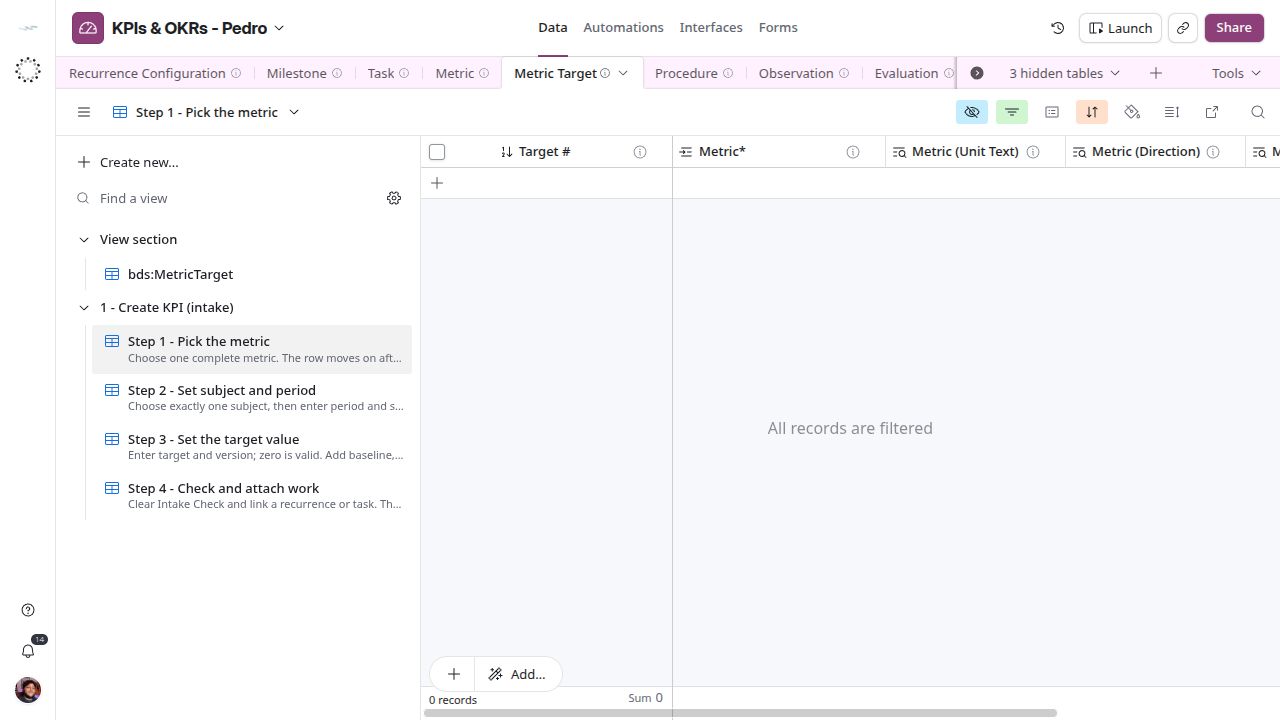
Link the metric rather than typing another definition of it.
Set subject and period
In Step 2 - Set subject and period, choose exactly one subject using the appropriate Organization, Membership, Team or Department field. Fill Period and Start Date. Period is a field in this implementation, not a separate cycle record.
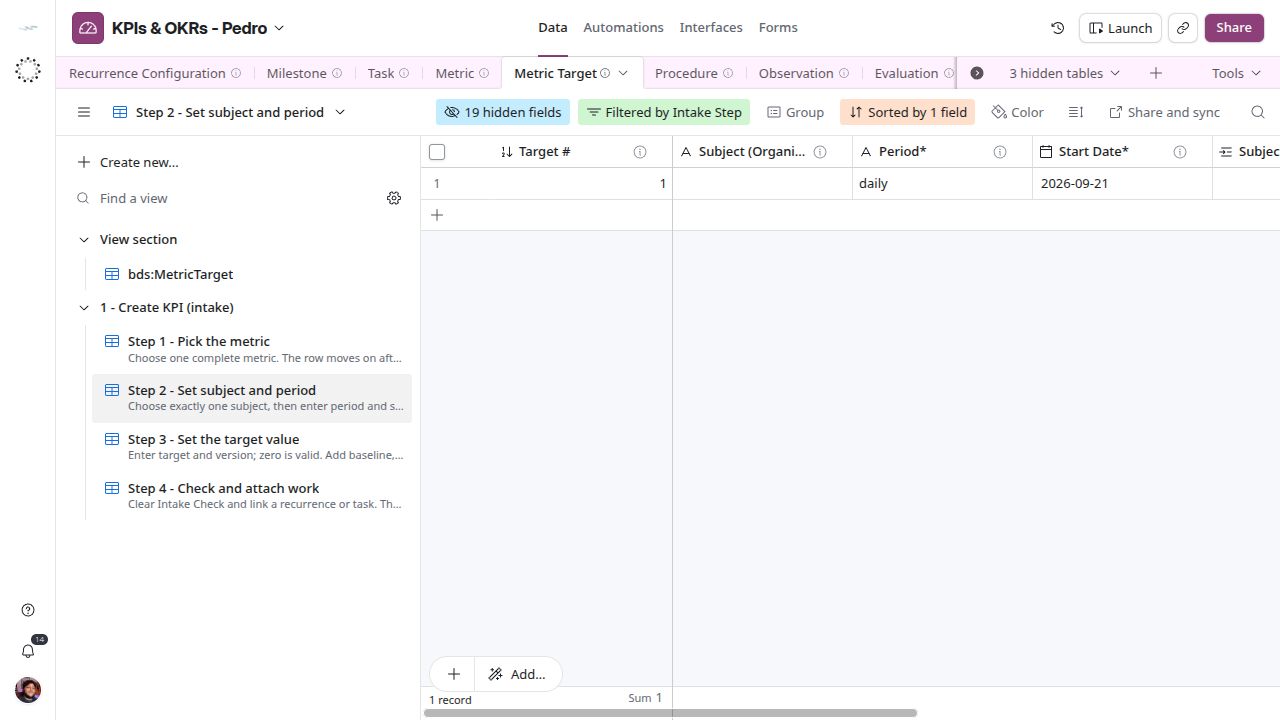
A period and start date are visible; check the subject fields too. Use horizontal scrolling for fields outside the viewport.
Set the value
In Step 3 - Set the target value, complete Target Value and Version. Zero is a valid numeric target. Fill Baseline, End Date or Supersedes when applicable before completing the fields that move the record onward. Scroll right if Target Value is outside the viewport.
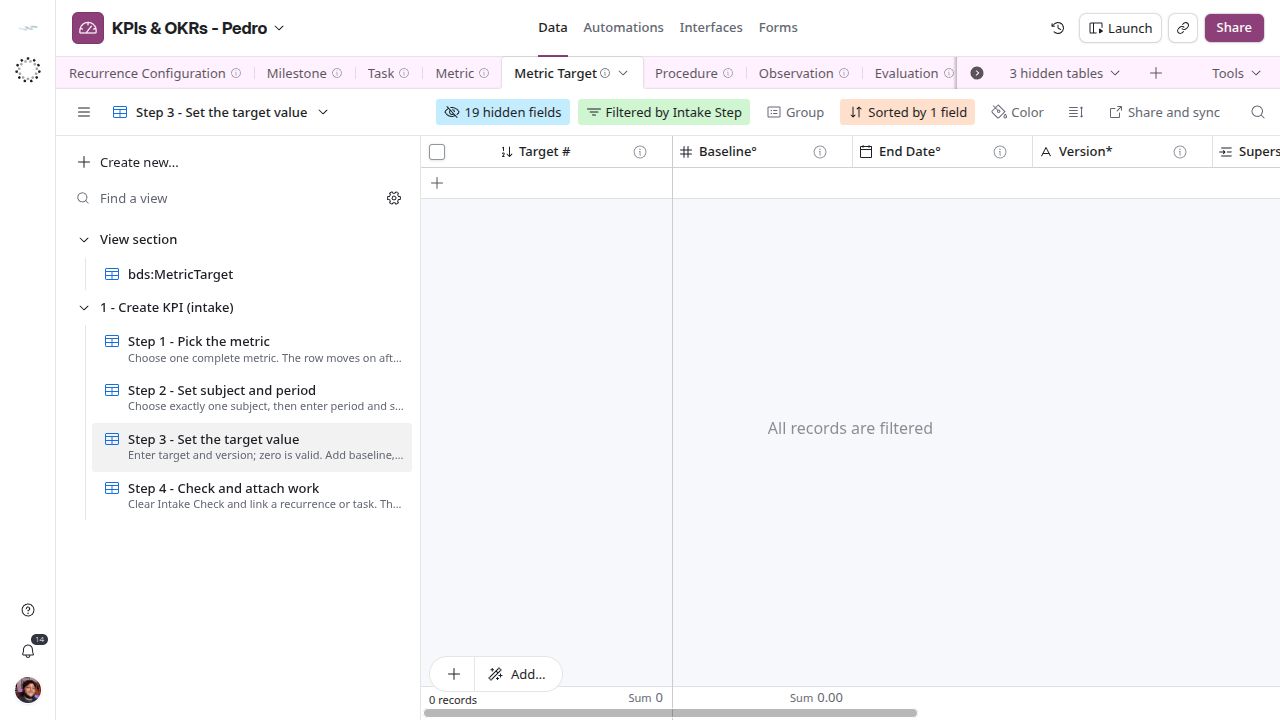
The target value column is farther right in this captured layout. Optional context belongs to the same target record.
Check and attach work
In Step 4 - Check and attach work, correct every issue reported by Intake Check and link the relevant Recurrence Configurations or Tasks. Intake Check is calculated; do not try to erase its message directly.
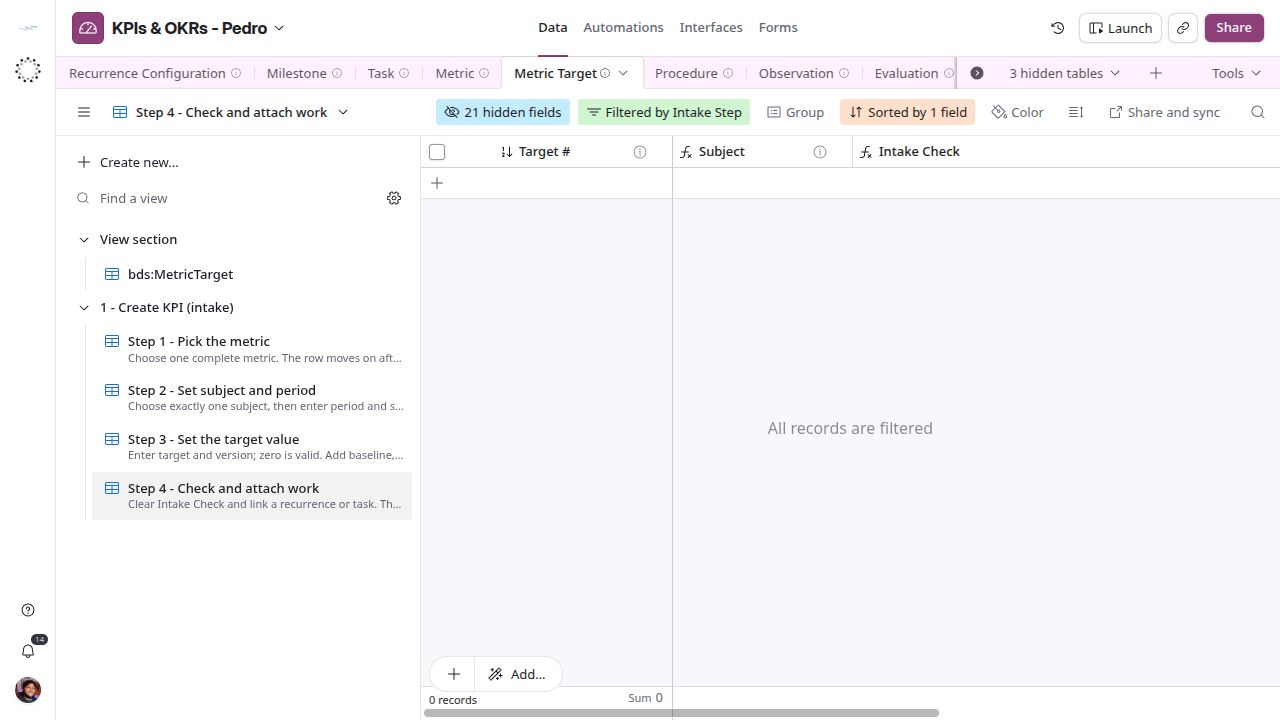
A clear check confirms the configured intake requirements. It does not evaluate performance.
Continue with Schedule collection.