
Register a system
Add a new base, app or workflow to System and give it a feedback route.
Outcome: the new system has one System row, a maintainer and a feedback key, and its record types are registered.
Reader: the maintainer who creates or adopts the system.
Before you start: the system exists or is being built, its architecture decision is Accepted if it changes ownership (build rule “A proposed ADR does not authorize building”), and you know the membership that will maintain it.
Steps
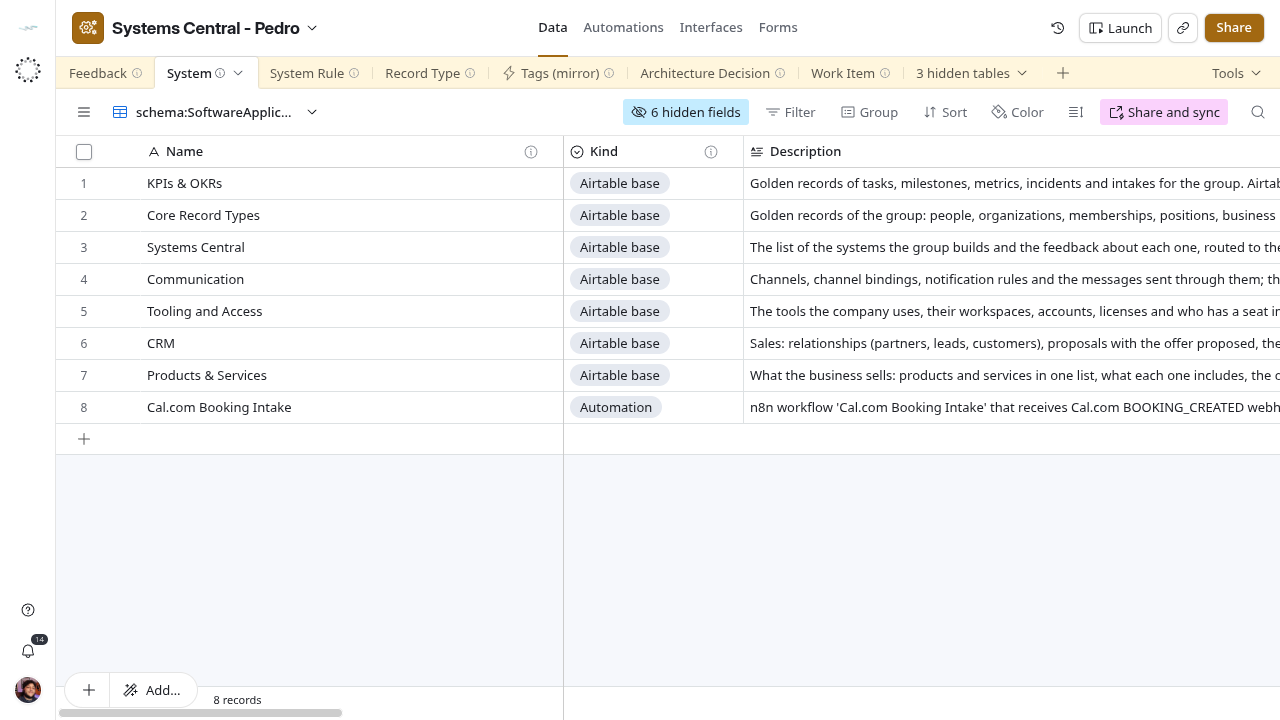
- Open Data → System → schema:SoftwareApplication. Search the list first. A new version or environment of an existing system is not a new row; update Version instead.
- Add a row. Fill Name (the name people use), Kind, Description (one or two sentences that tell it apart), Lifecycle Status (
Draftwhile being built,Activeonce in use) and Version when versioned. - Fill URL and External Identifier with the address and platform id people need to open it. For a webhook-triggered workflow, write the workflow name or id, never the webhook address: anyone who can read the base could call it.
- Link Maintainer: exactly one membership. It becomes the usual Accountable for feedback.
- Link Tool: the platform it runs on, such as Airtable or n8n.
- Register each kind of record the system keeps as its original: Register a record type.
- Give it a feedback route if people will report on it (next section).
Route feedback
- In Feedback, add a System Key option with the exact name of the key. Airtable’s API cannot create select options, so add it in the field settings.
- Type the same text in the System row’s Sync Key. The two must match character for character.
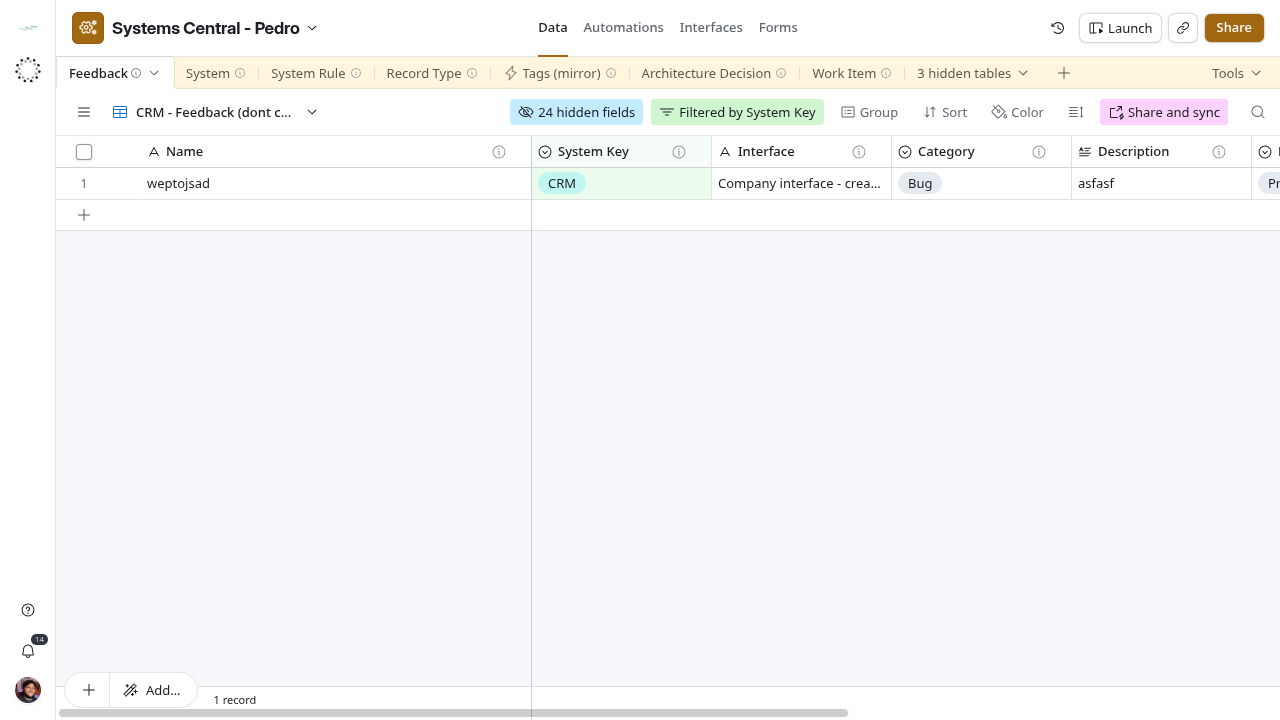
- If the system’s own base should show its feedback, duplicate CRM - Feedback (dont change the filter), set its filter to the new key and name it the same way. Then create a sync of that view in the system’s base. That last step happens in the other base and is not documented here.
- Create a test row in the system’s base, check that it arrives here with the right System Key, link System, and confirm Key Check is blank. Then archive the test row.
Success
The row shows in schema:SoftwareApplication with Maintainer, Tool and Sync Key filled. A routed feedback row shows a blank Key Check, and the System’s Open Feedbacks counts it.
Recovery
| Problem | Fix |
|---|---|
Key Check shows ⚠ key mismatch |
Sync Key and System Key differ: correct both together; changing one moves nothing by itself |
| Feedback never appears in the system’s base | Check the source view’s filter and the sync in the other base |
| Duplicate System row | Keep the one other tables link to; relink inverse links before archiving the other |
Renaming a system
Change Name only. Keep Sync Key unless you also change the System Key option and every row that uses it. KPIs & OKRs shows what happens otherwise: the name changed, the key Operations stayed, and readers now confuse it with the legacy base. See Known gaps.