
Intakes and checks
Create catalog records through six routed grid intakes, then review and activate each record.
Open Data, choose a native table and enter its 1 - Create … (intake) section. Each grid view is one step. The catalog maintainer fills the required cells, reads the closing check and sets Lifecycle Status* to Active. The eight Core mirrors are reference tables; create shared records in Core.
How rows move
Intake Step returns the first incomplete step for Draft rows and rows with no lifecycle status. Labels are Create - 1, Create - 2 and, where needed, Create - 3. Active and Archived rows return blank and leave the intake. Filling required cells moves the row immediately; optional cells do not hold it in a step. Fill optional details before the last required cell, or reopen the record from the reference view to add them later.
Each first step filters Lifecycle Status* to Draft and Intake Step to Create - 1. Creating a row there prefills Draft. If an existing row has no lifecycle status, set Draft in the reference view so it can enter the first step. Later steps filter only on their routing label. Step 1 sorts Created At newest first; subsequent steps sort oldest first.
* marks required input and ° marks optional input. Computed fields carry neither marker. The final view shows the check and the lifecycle status together. A check is advice: it does not prevent an edit or activate a row.
Product Category
1 - Create product category (intake) · Draft → Active.
| Step view | Visible columns, in order | Required input | Created At sort |
|---|---|---|---|
| Step 1 - Name the product category | Name*, Description°, Tags° | Name* | Newest first |
| Step 2 - Validate and activate category | Name*, Category Check, Lifecycle Status* | Lifecycle Status* | Oldest first |
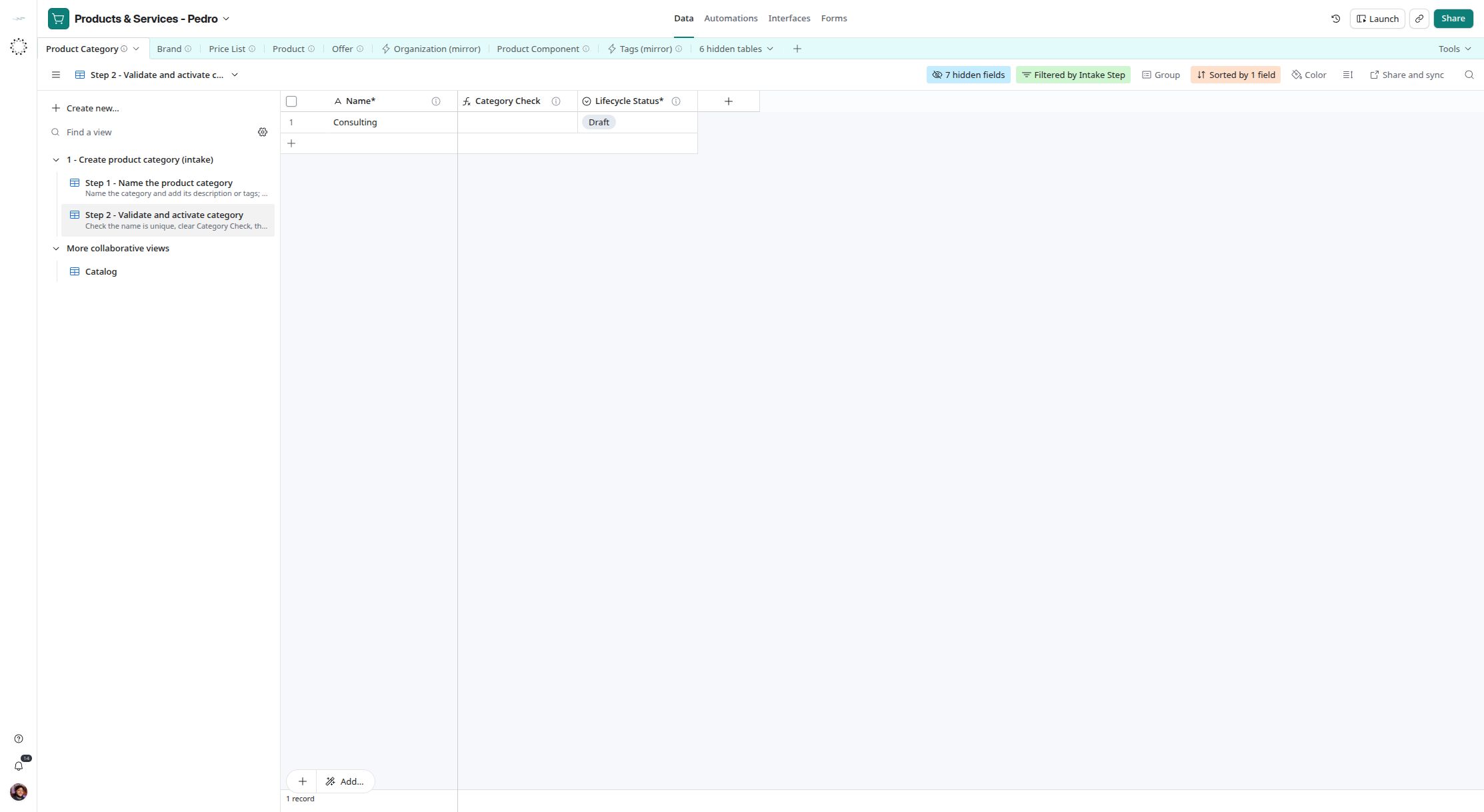
Product Category intake: review Category Check and set the lifecycle status in the closing step. Captured on 2026-11-04.
Brand
1 - Create brand (intake) · Draft → Active.
| Step view | Visible columns, in order | Required input | Created At sort |
|---|---|---|---|
| Step 1 - Name the product brand | Name*, Logo°, Owner°, Tags° | Name* | Newest first |
| Step 2 - Validate and activate brand | Name*, Brand Check, Lifecycle Status* | Lifecycle Status* | Oldest first |
Product
1 - Create product (intake) · Draft → Active.
| Step view | Visible columns, in order | Required input | Created At sort |
|---|---|---|---|
| Step 1 - Name and describe product | Name*, Description°, SKU°, GTIN°, Image°, URL°, Documents° | Name* | Newest first |
| Step 2 - Classify and assign product | Name*, Product Type*, Category°, Brand°, Provider°, Owner°, Alternative To° | Product Type* | Oldest first |
| Step 3 - Validate and activate product | Name*, Kind, Tags°, Product Check, Lifecycle Status* | Lifecycle Status* | Oldest first |
Product Component
1 - Create product component (intake) · Draft → Active.
| Step view | Visible columns, in order | Required input | Created At sort |
|---|---|---|---|
| Step 1 - Name whole and part | Name*, Product*, Includes* | Name*, Product*, Includes* | Newest first |
| Step 2 - Set quantity and unit | Name*, Quantity*, Unit*, Notes°, Tags° | Quantity*, Unit* | Oldest first |
| Step 3 - Validate and activate component | Name*, Component (Name), Component Check, Lifecycle Status* | Lifecycle Status* | Oldest first |
Price List
1 - Create price list (intake) · Draft → Active.
| Step view | Visible columns, in order | Required input | Created At sort |
|---|---|---|---|
| Step 1 - Name and scope list | Name*, Sales Channel°, Valid From°, Valid Through°, Is Default°, Tags° | Name* | Newest first |
| Step 2 - Validate and activate list | Name*, Seller (from Offers), Currency (from Offers), List Check, Lifecycle Status* | Lifecycle Status* | Oldest first |
Add offers from Offer.Price List°. Offers is the inverse link: the final step waits for List Check to be blank before the maintainer activates the list. Seller and currency are derived from the linked offers.
Offer
1 - Create offer (intake) · Draft → Active.
| Step view | Visible columns, in order | Required input | Created At sort |
|---|---|---|---|
| Step 1 - Name product and seller | Name*, Product*, Seller*, Tags° | Name*, Product*, Seller* | Newest first |
| Step 2 - Set price and unit | Name*, Price*, Price Currency*, Unit*, Minimum Quantity° | Price*, Price Currency*, Unit* | Oldest first |
| Step 3 - Validate and activate offer | Name*, Valid From°, Valid Through°, Price List°, Offer Check, Lifecycle Status* | Lifecycle Status* | Oldest first |
Check before activation
| Table | Closing check | What it checks |
|---|---|---|
| Product Category | Category Check | Name* is filled |
| Brand | Brand Check | Name* is filled |
| Product | Product Check | Name* and Product Type* are filled |
| Product Component | Component Check | Whole, part, quantity, unit and direct self-inclusion |
| Price List | List Check | At least one offer; one seller and currency across offers |
| Offer | Offer Check | Product, price, currency, unit, seller and date order |
The closing view remains visible until you change the lifecycle status. A blank check covers only that formula: verify link cardinality, intended seller and business meaning before activation. Never change the price of an offer already proposed; create a replacement offer. To retire a record, set Archived in its reference view.