
Add a product and its offer
Describe a good or service once, then put it on sale at one price through one seller.
Outcome: one Product row that describes the thing, and one Offer row that sells it, both Active with a blank Offer Check. Reader: the person who maintains the catalog.
Before you start
- The category exists in Product Category. If not, use its Step 1 - Name the product category and Step 2 - Validate and activate category first.
- The seller and provider companies exist in Core. Products & Services reads them through Organization (mirror); you cannot create a company here.
- Search Product for the name first. Each thing is described once; a second price is a second offer, not a second product.
Describe the product
- Open Data → Product → Step 1 - Name and describe product. Create the row there so Lifecycle Status* starts as Draft.
- Add optional Description°, SKU°, GTIN°, Image°, URL° and Documents° when useful; fill Name* with the trade name to advance.
- In Step 2 - Classify and assign product, link optional Category°, Brand°, Provider°, Owner° and Alternative To°. You can also add them later in Catalog.
- Choose Product Type* to advance. Retainer, Subscription, Hourly and Project are services; Digital is a license or credit; the other choices are goods. Kind fills itself.
- In Step 3 - Validate and activate product, add optional Tags°, read Product Check and set Lifecycle Status* to Active when the record is ready.
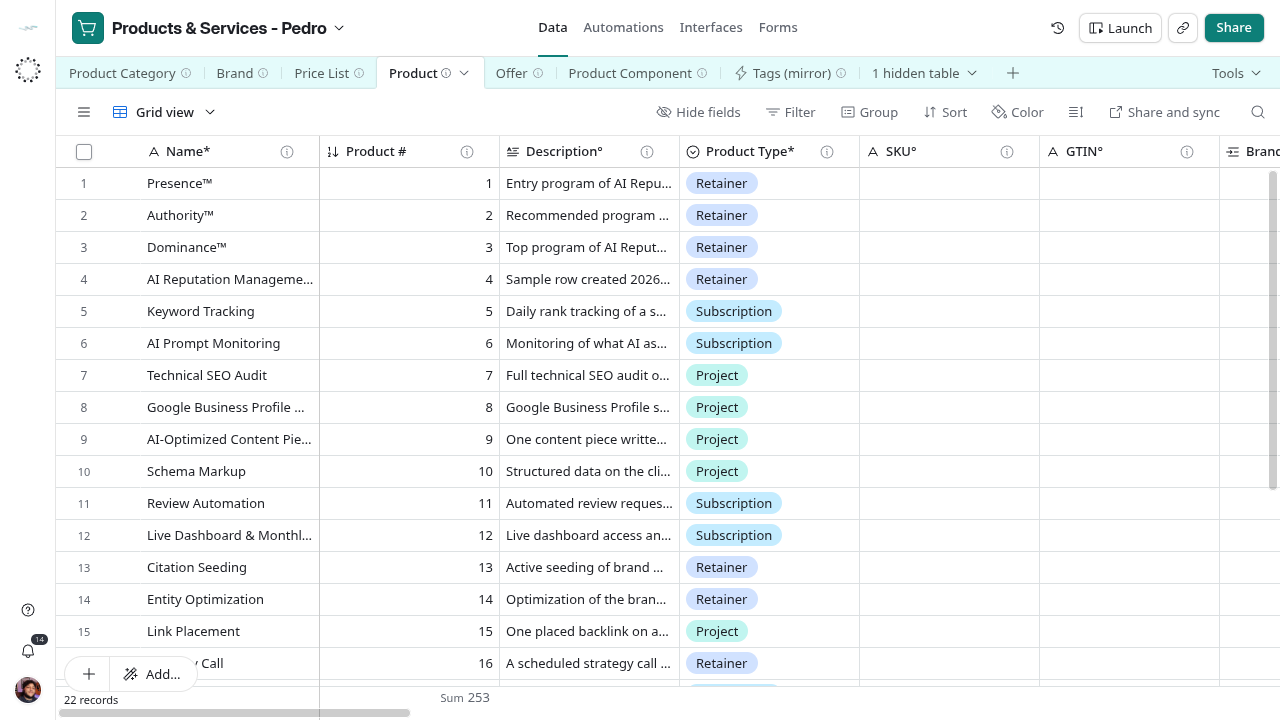
Reference grid captured on 2026-10-28, before the intake views and label updates. Use the current view names in this guide.
Put it on sale
- Open Data → Offer → Step 1 - Name product and seller and create a Draft row.
- Fill Name* as item - price/unit, such as
Example Program - 1800/month. Link exactly one Product* and one Seller*, the group company on the proposal. Add optional Tags° before completing the required inputs. - In Step 2 - Set price and unit, add optional Minimum Quantity° if needed, then enter Price*, Price Currency* and Unit*.
- In Step 3 - Validate and activate offer, set optional Valid From°, Valid Through° and Price List°. Read Offer Check beside Lifecycle Status*.
Check and activate
Read Offer Check on the offer row. Fix every column a ⚠ fragment names until it is blank. Then set Lifecycle Status* to Active on the product and on the offer. The product’s Offers column now lists the offer.
Success: Offer Check is blank, both rows are Active, and the offer appears in the CRM’s Offer mirror after the next sync. The sync interval is set in the CRM’s sync settings; if the offer does not appear, see Troubleshooting.
Recovery
Wrong product or seller: relink on the offer. Offer created by mistake and never proposed: set it to Archived rather than deleting it, so any link stays readable. Never edit Price* on an offer that proposals already used; follow Change a price.