
Manage deals
Propose an offer, assign the seller, forecast a decision and record the outcome.
Flow
A Deal walks the four intake steps in order; it leaves Step 3 once the proposal data is in and leaves the intake when it closes.
Mermaid source
flowchart TD
  dir["Directory<br/><small>People and Companies: find or add the client</small>"]:::action
  cal[["Cal.com booking<br/><small>creates the Deal at Meeting Scheduled</small>"]]:::automation
  s1["Step 1 - Say who the client is<br/><small>Deal: Company°, People°, Source°</small>"]:::action
  s2["Step 2 - Set who is accountable<br/><small>Accountable (Company)*, Accountable (Person)*</small>"]:::action
  s4["Step 4 - Advance or close the deal<br/><small>update Deal Stage*</small>"]:::action
  miss{{"Proposal Sent or Negotiation<br/>with proposal data missing?"}}:::decision
  s3["Step 3 - Complete the proposal<br/><small>Product*, Value*, Expected Close Date*</small>"]:::action
  chk["Check - Deal exceptions<br/><small>resolve Deal Check</small>"]:::action
  closed{{"Closed?"}}:::decision
  won(["Won<br/><small>Product*, Value*, Expected Close Date* filled</small>"]):::outcome
  lost(["Lost or Abandoned<br/><small>reason in Notes°</small>"]):::outcome
  dir --> s1 --> s2 --> s4
  cal -.-> s4
  s4 --> miss
  miss -- yes --> s3 --> s4
  miss -- no --> chk --> closed
  closed -- not yet --> s4
  closed -- Won --> won
  closed -- Lost / Abandoned --> lost
Find or add the client
In Data, search People → Directory by email and Companies → Directory by website before adding. People has Step 1 - Name the person and Step 2 - Add a way to reach them; Companies has Step 1 - Name the company and its site. These views expose identity inputs; do not count on sync write-back or automatic duplicate rejection. If the mirror is read-only, ask the Core maintainer to create or correct the identity at the source and wait for it to appear. Do not create a second identity to bypass sync latency.
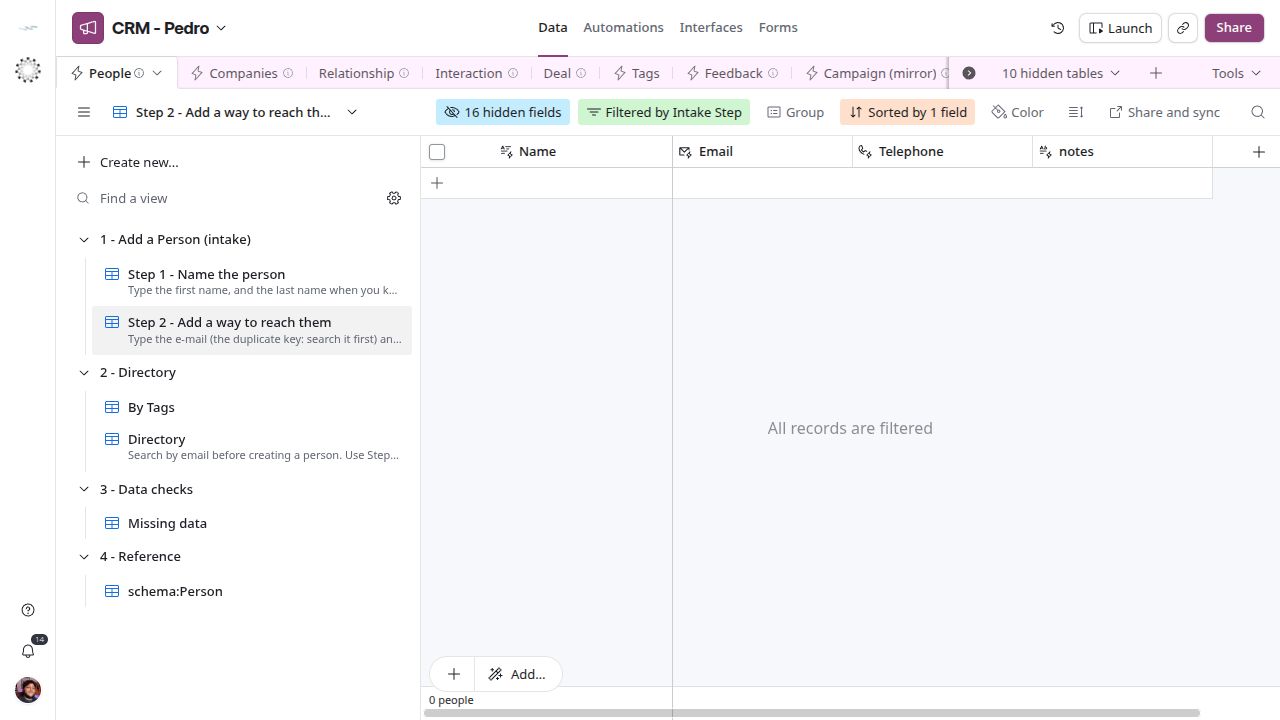
People intake: add email and contact details.
Say who the client is
A lead is a Deal at Deal Stage* = Lead. Open Data → Deal → Step 1 - Say who the client is; this view holds open Deals without a client, newest first. Create or complete the row, link the client in Company°, People° or both, set Source° to say how the lead came in, and add context in Notes°. A new lead starts at Lead. Product*, Value* and Expected Close Date* can wait until Proposal Sent. To work the open leads afterwards, use Deal → Leads (Lead, Contacted and Meeting Scheduled, newest first) or Deal → By Creator.
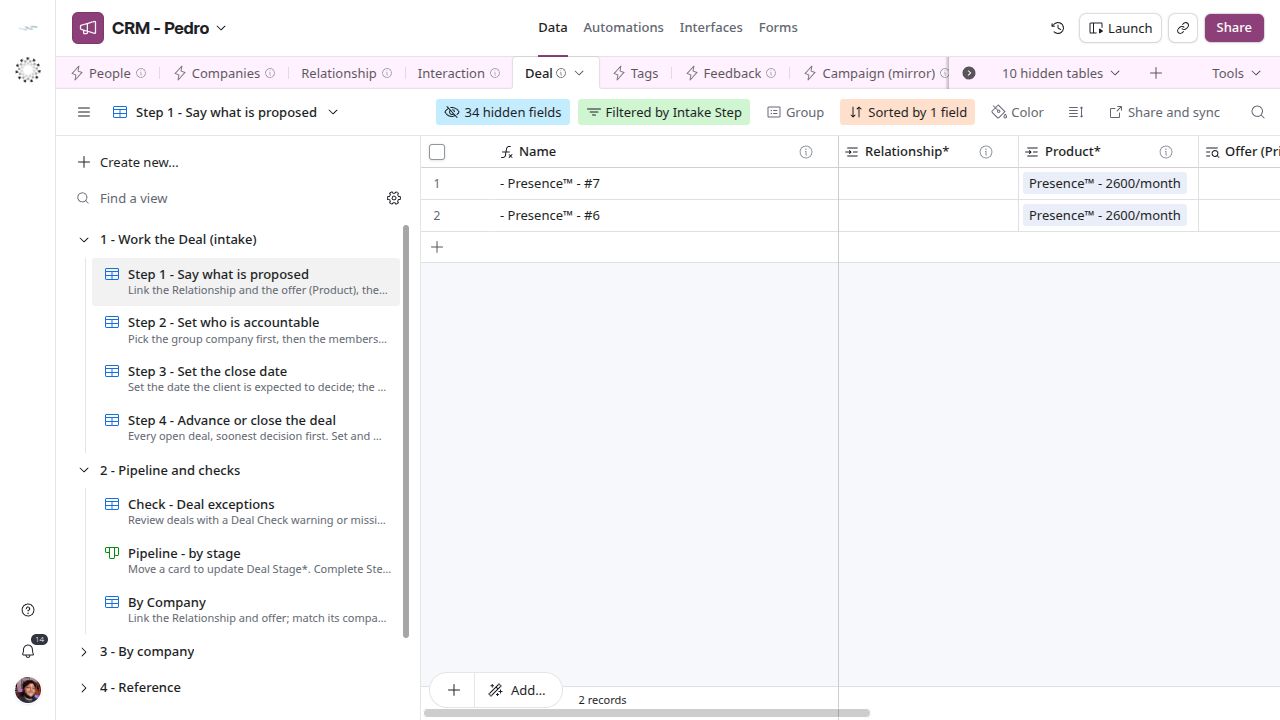
Say who the client is — CRM screen.
Assign accountability
Step 2 - Set who is accountable requires Accountable (Company)* and Accountable (Person)*. The person must hold a membership in the accountable company. Complete both links in this grid step. Resolve Deal Check if the pair disagrees.
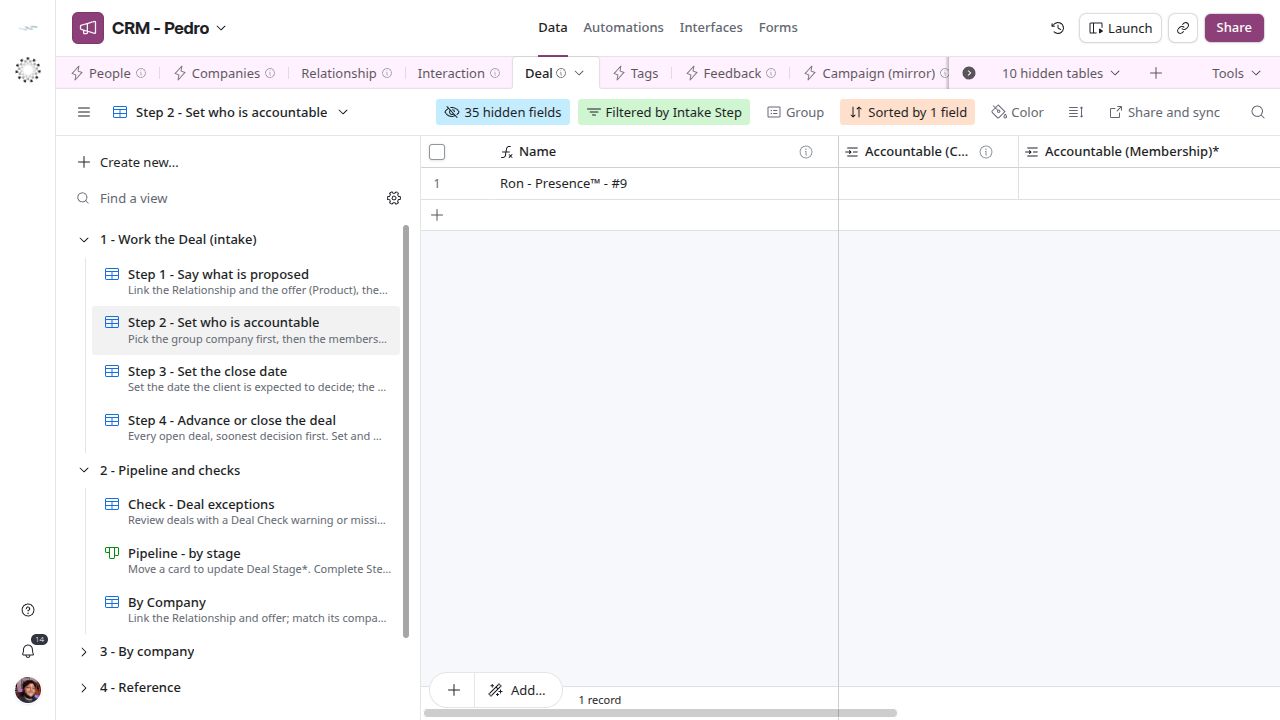
Assign accountability — current CRM screen.
Complete the proposal
Step 3 - Complete the proposal holds Deals at Proposal Sent or Negotiation that still lack Product*, Value* or Expected Close Date*. Link the offer in Product*, type the monthly value in Value* and the expected decision date in Expected Close Date*. When you select Product*, compare Offer (Price) with your negotiated Value*; read the linked Offer in Offer (mirror) → Grid view to check currency, unit, validity and seller. A proposal can have a different value without changing the shared offer. Use the date you expect a decision, not a fabricated completion date. Revise it when the forecast changes. Record negotiation context in Notes°.
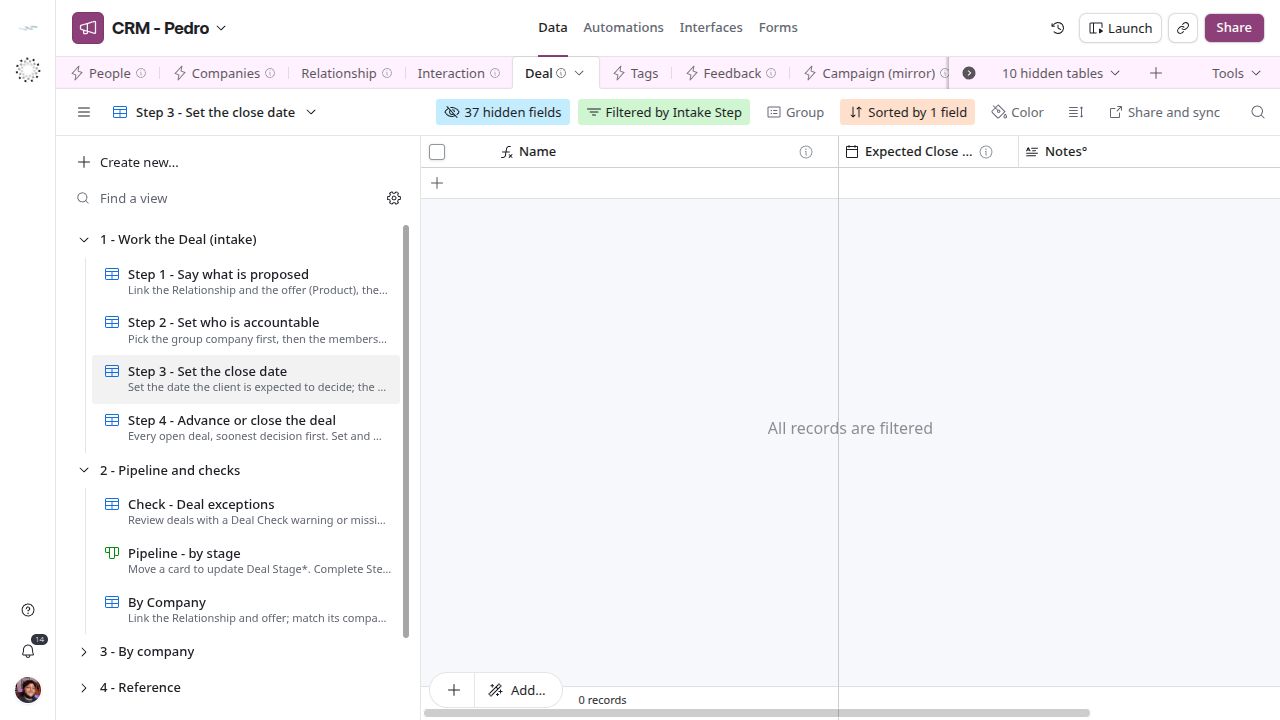
Complete the proposal — CRM screen.
Advance and close
Step 4 - Advance or close the deal holds complete open Deals, leads included. Update Deal Stage* as the conversation advances and resolve Deal Check. For campaign work, check that Campaign° holds the right campaign before closing; no check infers a missing campaign link. Open the deal to log a meeting or add the next task. Won, Lost and Abandoned leave the intake; a disqualified lead is Lost, with the reason in Notes°. A Won Deal needs Product*, Value* and Expected Close Date*. No automation creates billing records. Pipeline - by stage shows the same Deals as cards per Deal Stage*, and Check - Deal exceptions lists any Deal with a Deal Check warning or missing data.
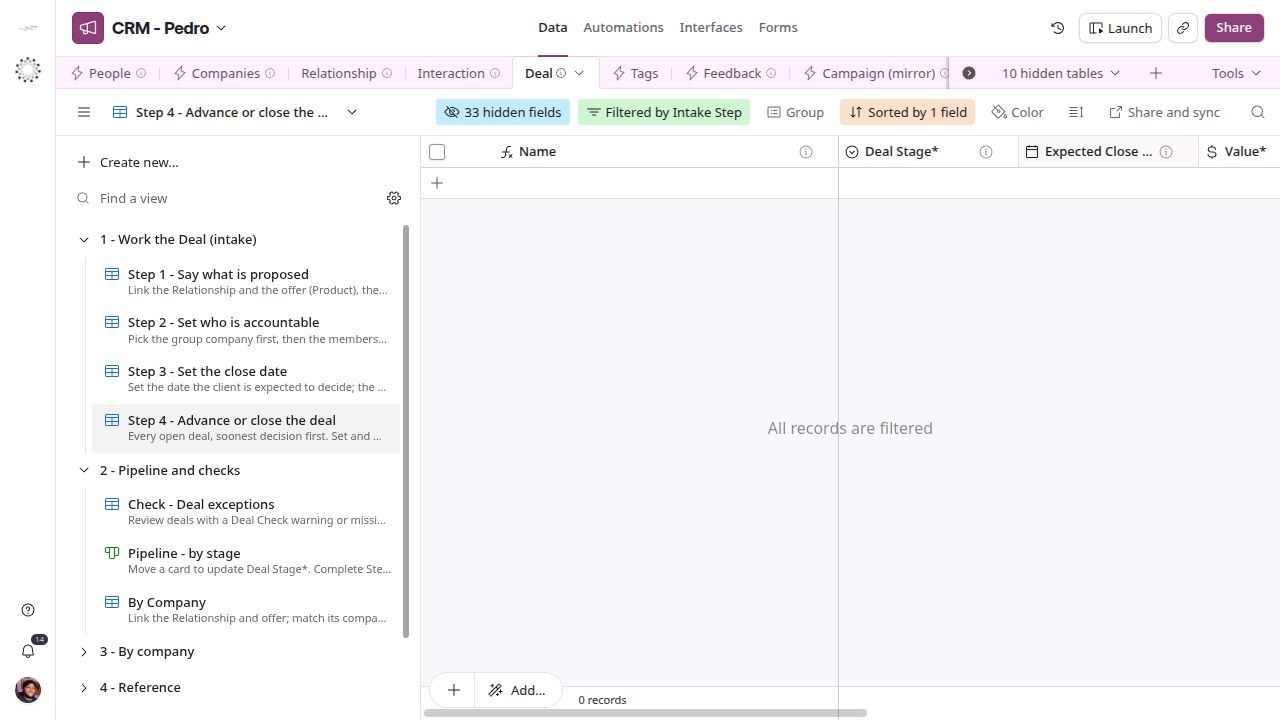
Advance and close — current CRM screen.