
Controls
Put create, filters, assignee, date shortcuts, done and stage where the products people already use put them.
When to use
Use it on every list, board and form where the person creates a record, narrows rows, sets a next action or moves a stage.
When not to use
Intake steps live in grid views and follow intake views. Where to open a create form from is covered in creating records.
How it works
Put the create button at the top right
The button that creates a record sits at the top right of the page or panel that lists those records.
Pass: on every list page, the create button is the rightmost control in the top bar.
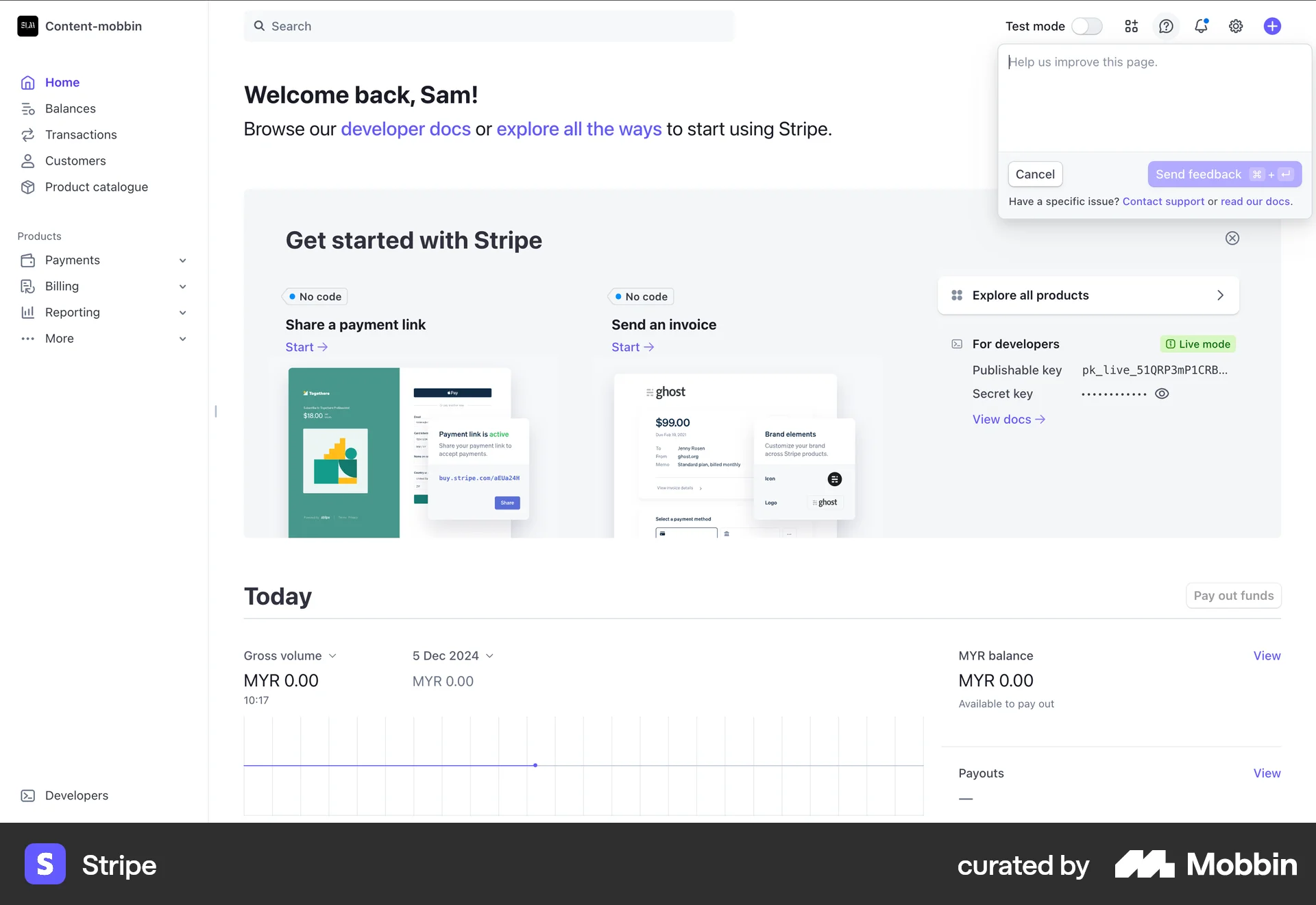
Stripe puts its + create button at the top right.
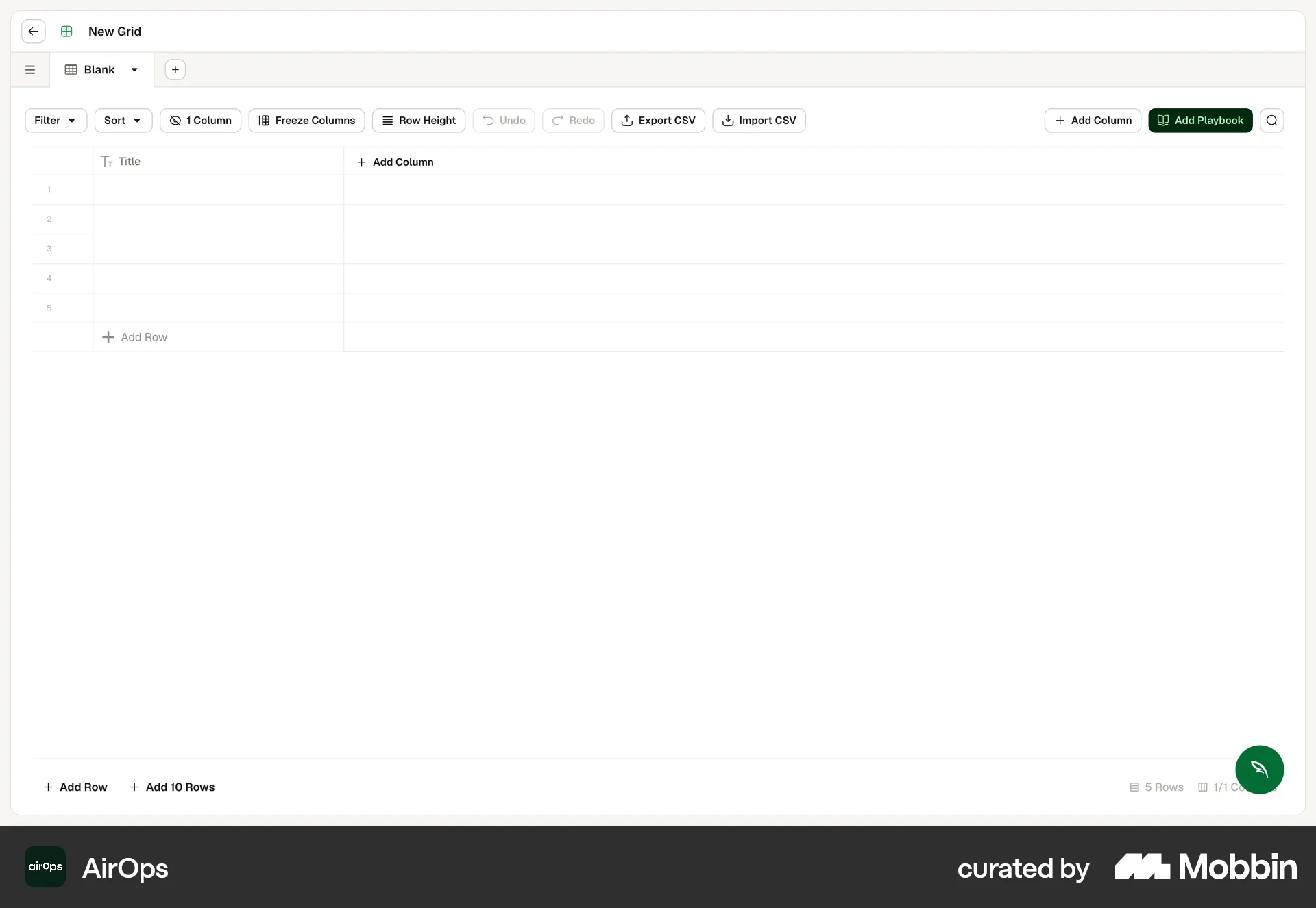
AirOps puts Add Row at the bottom of the grid, below the last row.
Put the filters above the records
Filters sit in one bar directly above the rows they narrow. The order of that bar is set in filters.
Pass: on every list page, the filter bar sits between the page title and the first row.
Quick filters sit in one bar above the table.
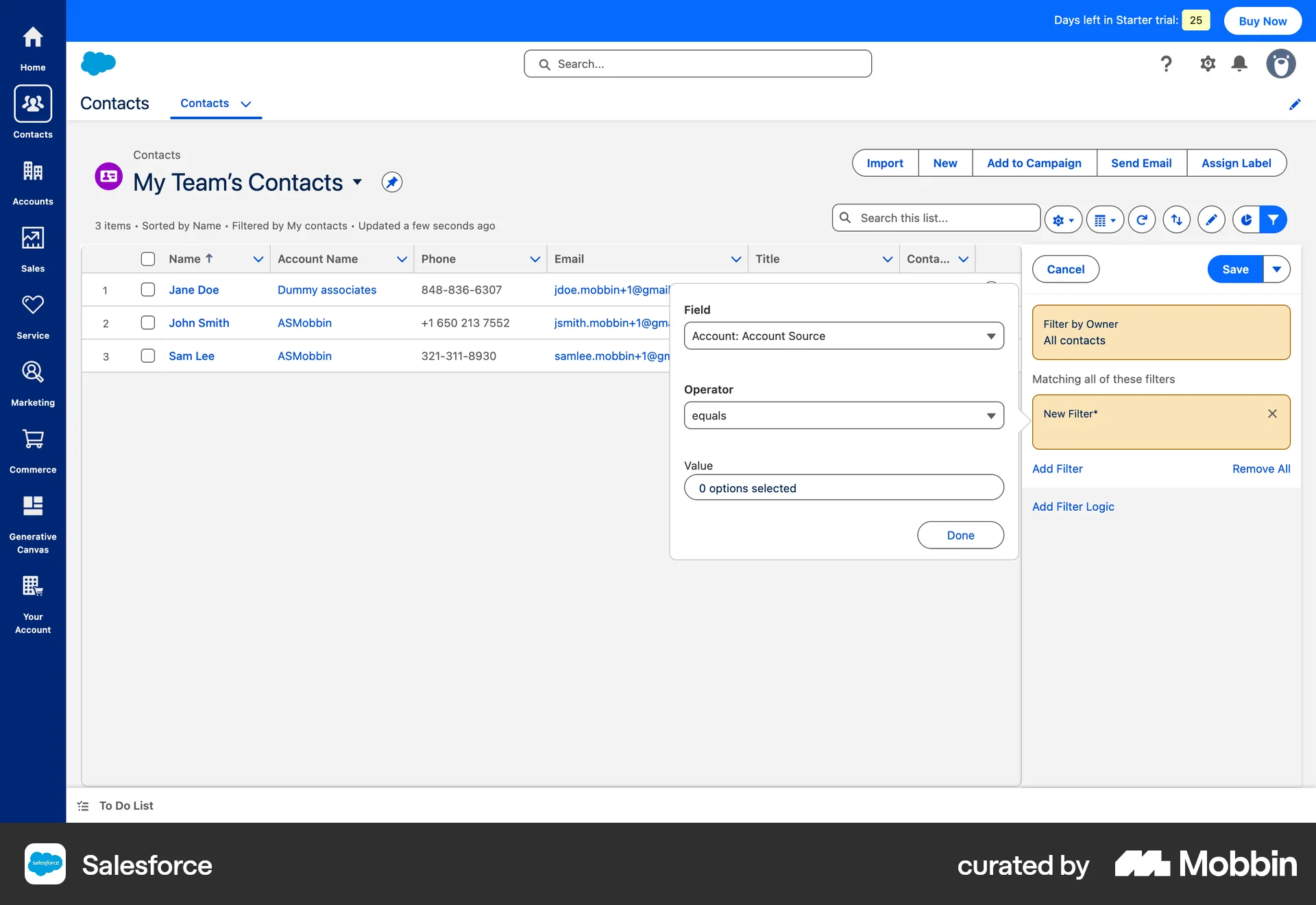
Salesforce opens its filters in a side panel, away from the rows.
Start the assignee of a next action as the signed-in user
A new task or next action arrives with the person creating it as its assignee. They change it only when the work goes to someone else.
Pass: create a next action from any entry point; no owner entry is needed.
Assigned to starts filled with the signed-in user.
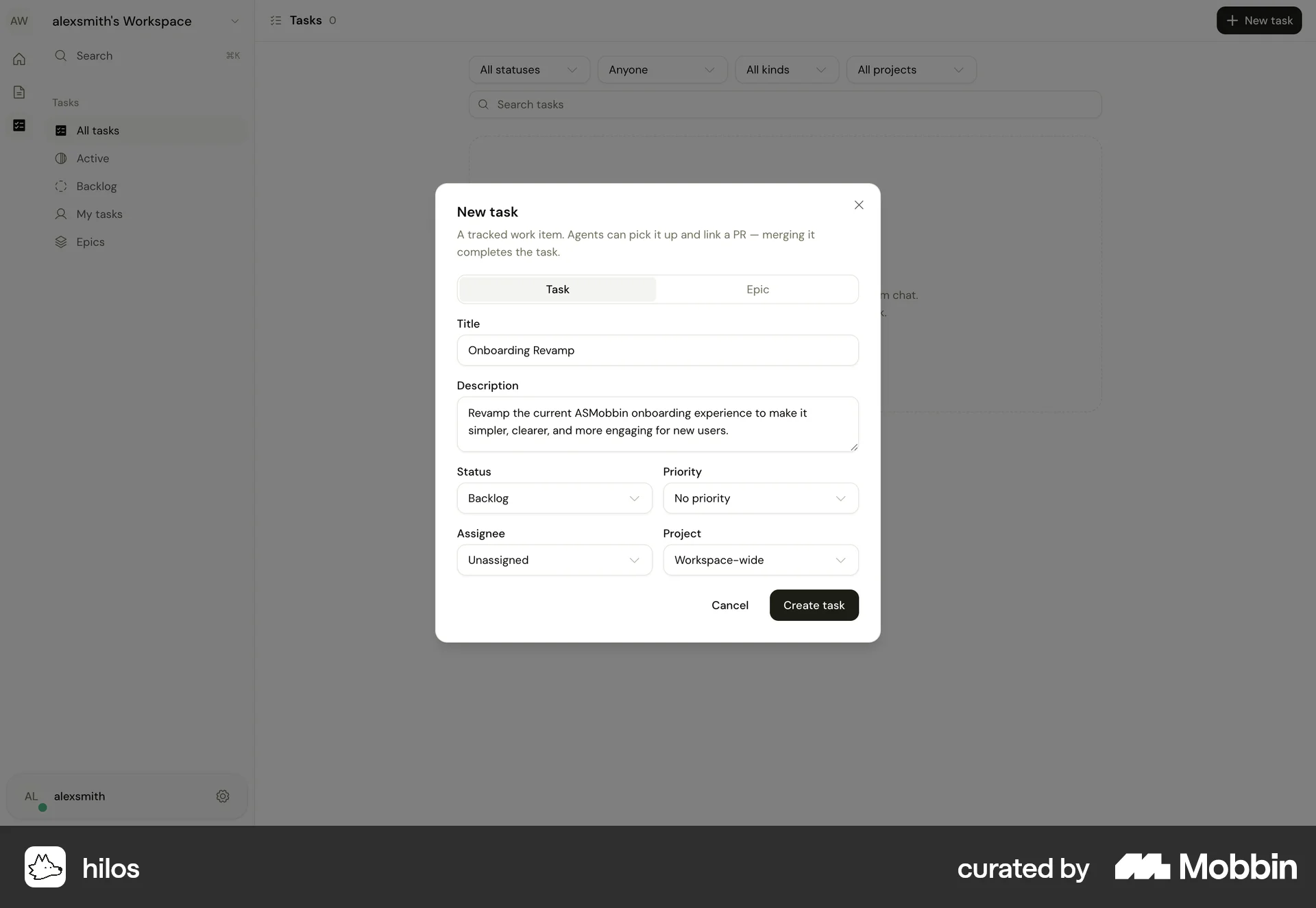
hilos opens New task with Assignee set to Unassigned.
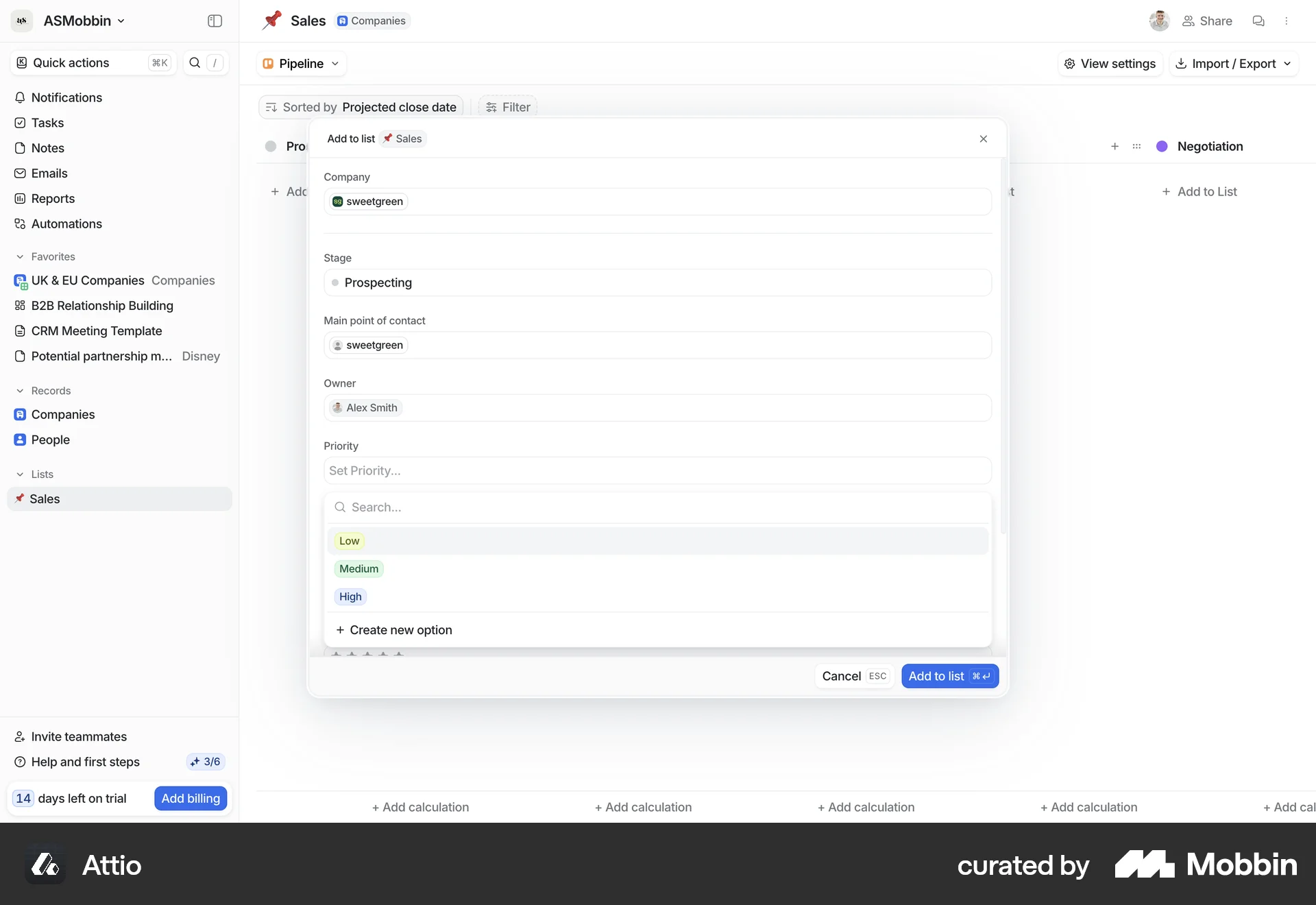
Attio fills Owner with Alex Smith and Stage with Prospecting.
The same form with Owner and Stage blank.
Put Tomorrow beside Today and show the date each shortcut resolves to
The date picker offers Tomorrow next to Today. Every relative shortcut shows the date it will set, so the person checks it without opening a calendar.
Pass: set the next day with one choice, and every relative shortcut shows its resolved date beside its label.
In 3 business days shows the day it lands on, Wednesday.
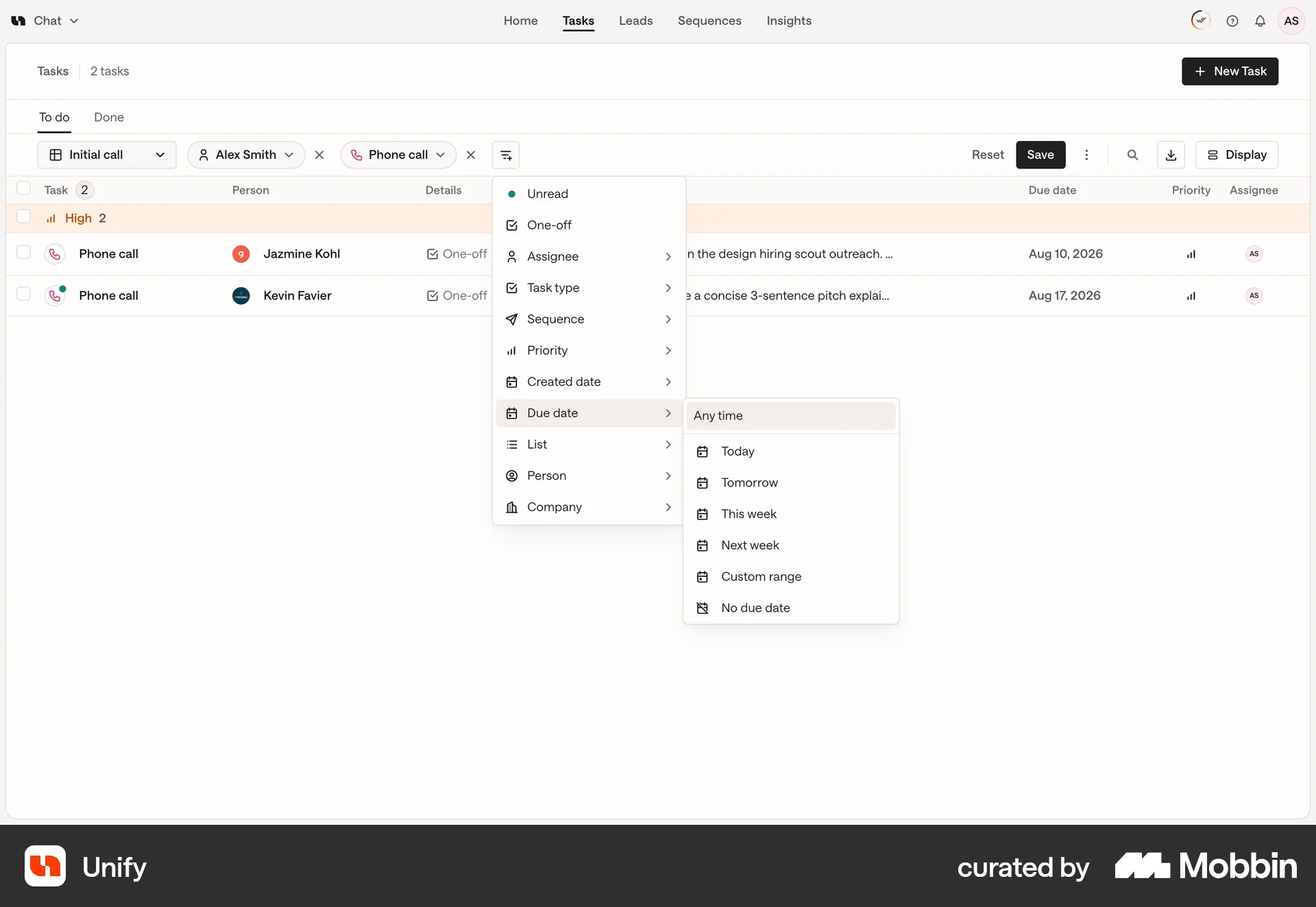
Unify lists Today, Tomorrow, This week and Next week with no date beside them.
- Replace this
- In 1 week
- With this
- In 1 week (Aug 11)
Mark done with a separate control that keeps the record
Done is its own control, a checkbox on the row. Marking a task done keeps the record and moves it to the completed group.
Pass: mark a next action done in 2 clicks or fewer, and the record is still there afterwards.
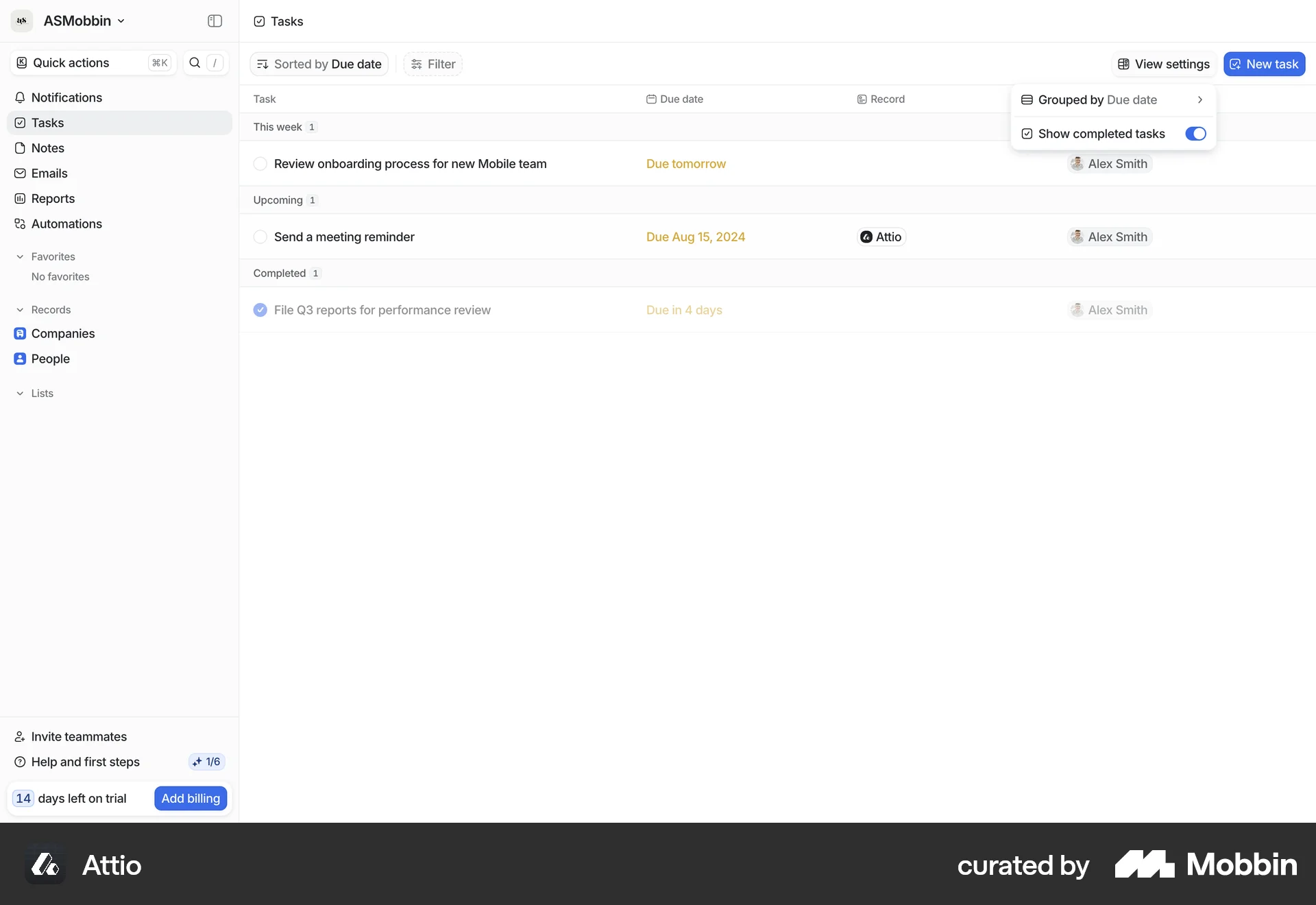
Attio puts a checkbox on each task and keeps finished ones under Completed, behind Show completed tasks.
The same list where finishing a task means deleting it.
Leave repeat and reminders off by default
A new task does not repeat and sends no reminder until the person turns one on. Both controls sit on the create form, so the person can set them before saving.
Pass: a new next action saves with repeat off and no reminder, and the person can choose a cadence before saving.
Set to repeat starts unchecked, and Reminder is a select.
The same panel with Set to repeat checked on every new task.
Save a stage change as soon as it is made
Picking a new stage saves it. There is no save button for a stage.
Pass: change a stage and reload; the new stage is there without any other click.
Give anything meant to be copied a copy button
A code block, a template or an id that exists to be pasted somewhere else carries a Copy button at its top right. Selecting the text by hand is three actions: drag, right click, Copy.
Pass: copy a code block or template in 1 click, and the button says Copied for a moment afterwards.
Research
The first two rules come from the reviewer’s CRM usability comparison (2026-09-29/30). Its familiar controls table marks Create at top right and Filters above records Yes for our CRM, Attio and folk alike (comparison, lines 642 to 660). The Stripe dashboard confirms the first: its + create button sits at the top right.
The assignee rule copies Attio’s Add to list form, which fills Owner and Stage. The comparison asks to “Add a next-action assignee that starts as the signed-in user, copying all three tools.” with “Pass: no owner entry is needed.” (comparison, line 662). It notes that this assignee is separate from the relationship Owner.
The date rule comes from the comparison. It asks to “Add Tomorrow beside Today in the date picker” with “Pass: set the next day with one choice.” (comparison, line 663). Its date shortcut table finds Tomorrow in Attio and folk, and it asks to “Show the resolved CRM date beside each relative shortcut.” (comparison, lines 883 to 903).
The done rule copies Attio’s tasks list, which has a checkbox per task and a Completed group. The comparison asks for “a separate Done control for next actions” that keeps the record (comparison, line 664).
Repeat and reminders rest on the comparison. It asks for “repeat controls with repeating off by default” (comparison, line 666) and a reminder picker (comparison, line 665). No screenshot shows a reminder’s default state, so “no reminder by default” rests on the comparison alone.
The stage rule has no screenshot. It comes from the comparison’s Stage autosaves row, Yes in all four products (comparison, line 658).
The copy button is copied from the code blocks of Stripe’s documentation (https://docs.stripe.com) and of GitHub (https://github.com), which put a Copy control at the top right of every block. The reviewer’s comparison does not measure it; the rule comes from the self-audit of this guide, where copying the measurement template took 6 scrolls and 3 clicks. No Mobbin screenshot yet.