
Register a tool account
Add a tool, its workspace and an account so other systems can match activity to the right row.
Reviewed 2026-10-28Markdown
Outcome: one Tool, one Tool Workspace and one Tool Account row, linked to each other and carrying the ids the tool itself uses. Automations match on those ids, not on names. This guide is for whoever administers the group’s tools.
Before you start
- Open the tool’s admin page so you can copy the workspace id and the account id.
- Know what kind of account it is: one person’s (human), a login several people use (shared), an app or bot user (bot) or a machine identity for integrations (service).
- For a bot or service account, the credential stays in the tool or a secret store. You will not paste it anywhere in this base.
Steps
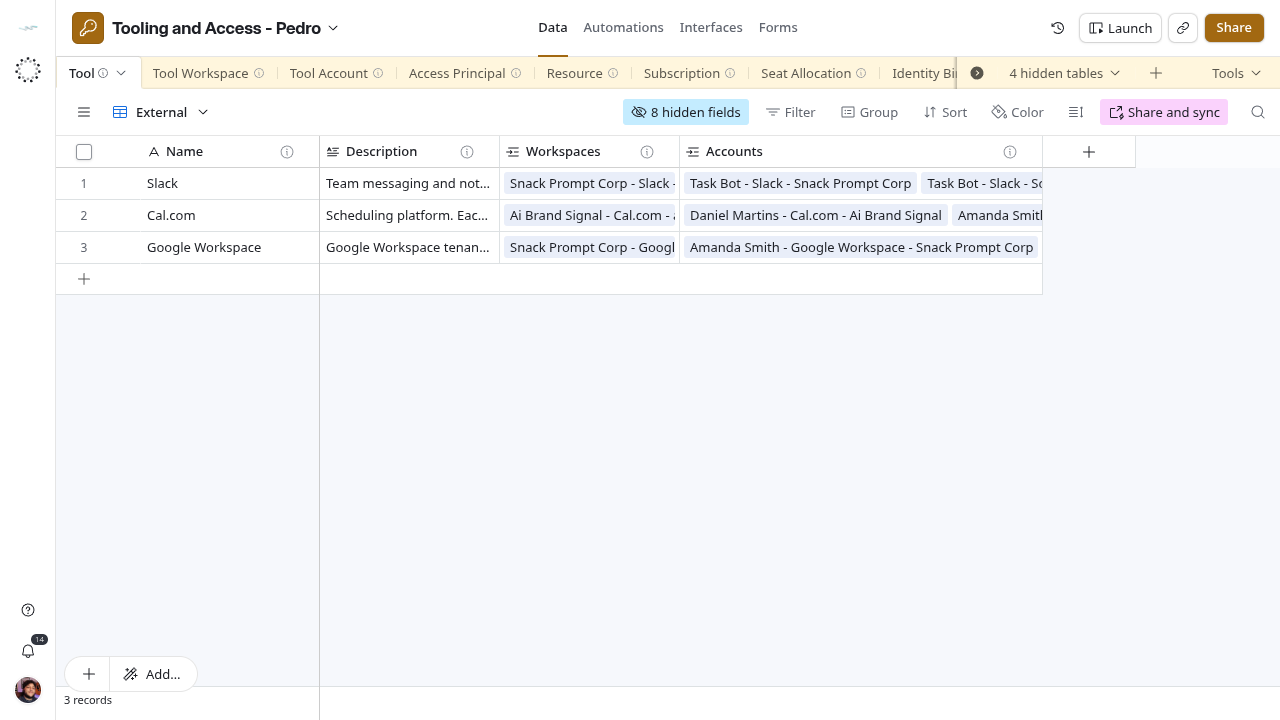
- Open Data → Tool → External and look for the product. If it is missing, add a row with Name as the vendor publishes it and a short Description. Leave Secret Ref blank unless you have a vault path.
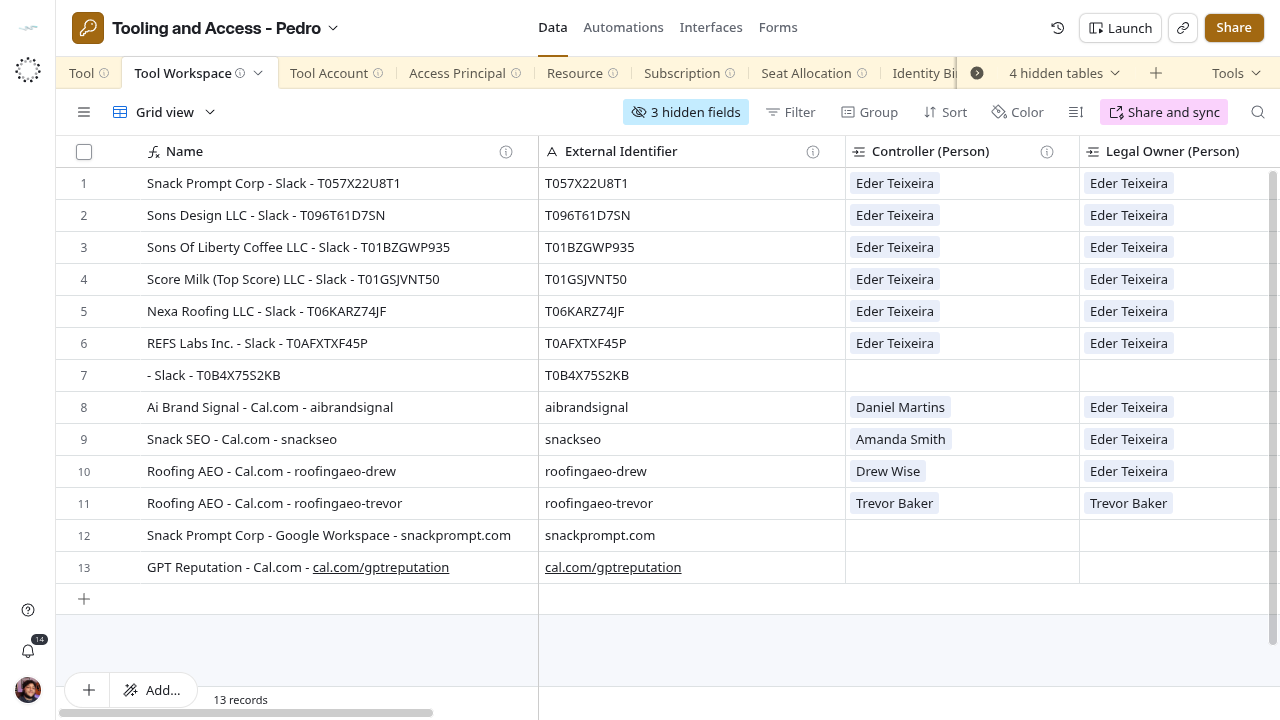
- Open Data → Tool Workspace → Grid view and look for the tenant. If it is missing, add a row: link one Tool, link the Company behind the tenant, and paste External Identifier from the admin page. Add Controller (Person) and Legal Owner (Person) when you know them. Name fills itself.
- Open Data → Tool Account in the view for your tool (Slack accounts, Cal.com accounts) or in By Workspace. Search External Identifier first; the base does not reject duplicates.
- Add the account: Display name as the tool shows it, Tool, Workspace, External Identifier, Login Alias when the account signs in, and Kind. Pick unresolved rather than guessing.
- Leave Access Token and Secret Ref blank. Every Tool Account view shows Access Token; do not screenshot or export these views.
- If a person stands behind the account, continue with Bind an account to a person.
Check the result
- Tool Workspace Name reads
Company - Tool - External Identifier, and Workspace URL contains nomissingtext. - Tool Account Name reads
Display name - Tool - Company. Workspace (External Identifier) shows the workspace id. - The account appears in the tool’s view, for example Slack accounts, which filters on Tool = Slack.
Recover
- Name is wrong: correct the fields it is built from. Name is a formula on both tables.
- Name ends with an id instead of a company: the account has no Workspace, or the workspace has no Company.
- You created a duplicate: move bindings, seats and principals to the row you keep, then check CRM Automation: Lead Source before deleting the other row, because CRM routes Cal.com bookings through these accounts.
- You pasted a credential by mistake: clear the cell, rotate the credential in the tool and tell the maintainer. The sync may already have copied it to CRM.
Next steps
Bind the account · Route a Cal.com seller in CRM · Tool Account reference