
Register channels and rules
Record a channel, point it at a subject and describe the rule that uses it.
Outcome: a channel that a teammate can find, a binding that says which subject it serves, and a rule that says which event uses it. Reader: the maintainer of a flow that sends messages. Prerequisites: edit access to Communication - Pedro; the tool, workspace, team, department or organization already exist in their source base.
These records describe the communication setup. Registering them does not create the channel in the tool, does not grant access and does not make any flow send. Only the flow’s own configuration decides what it sends today.
Register the channel
- Open Data → Channel → Grid view and add a row.
- Fill Name as the tool shows it, without
#; for an address or webhook, a short label. - Choose Channel Type: Tool Channel, Email, SMS, Webhook, Form or Direct Message.
- Fill External Identifier exactly: the tool’s channel id, the address, the number or the webhook URL. A webhook URL is a credential in practice; share the row only with people who may call it.
- For a Tool Channel, link Tool and Tool Workspace. Leave both blank for the other kinds.
- Write Description with the purpose and posting boundary, then set Lifecycle Status to Active once the channel is in use.
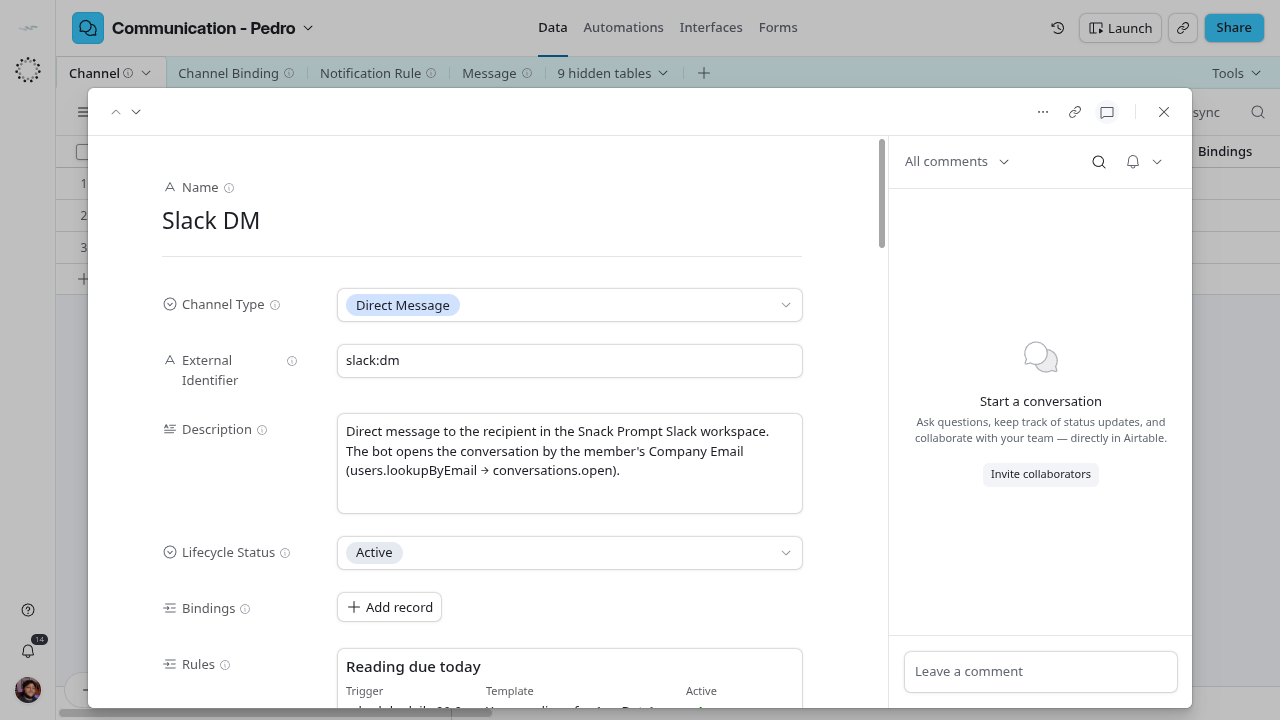
Success: the row has a name, a type, an identifier that resolves in the tool and Lifecycle Status Active.
Bind the channel to a subject
- Open Channel Binding → Grid view and add a row.
- Link Channel: exactly one Active channel.
- Choose Subject Type and paste Subject Key exactly as the source spells it.
- Link the matching subject: Subject (Team), Subject (Department) or Subject (Organization). Leave the other two blank. Agreement has no link; the key is enough.
- Choose one Purpose. A second purpose is a second binding.
- Set Valid From when the binding starts later than today; leave Valid Through blank while it applies.
- Write Name as channel · subject · purpose.
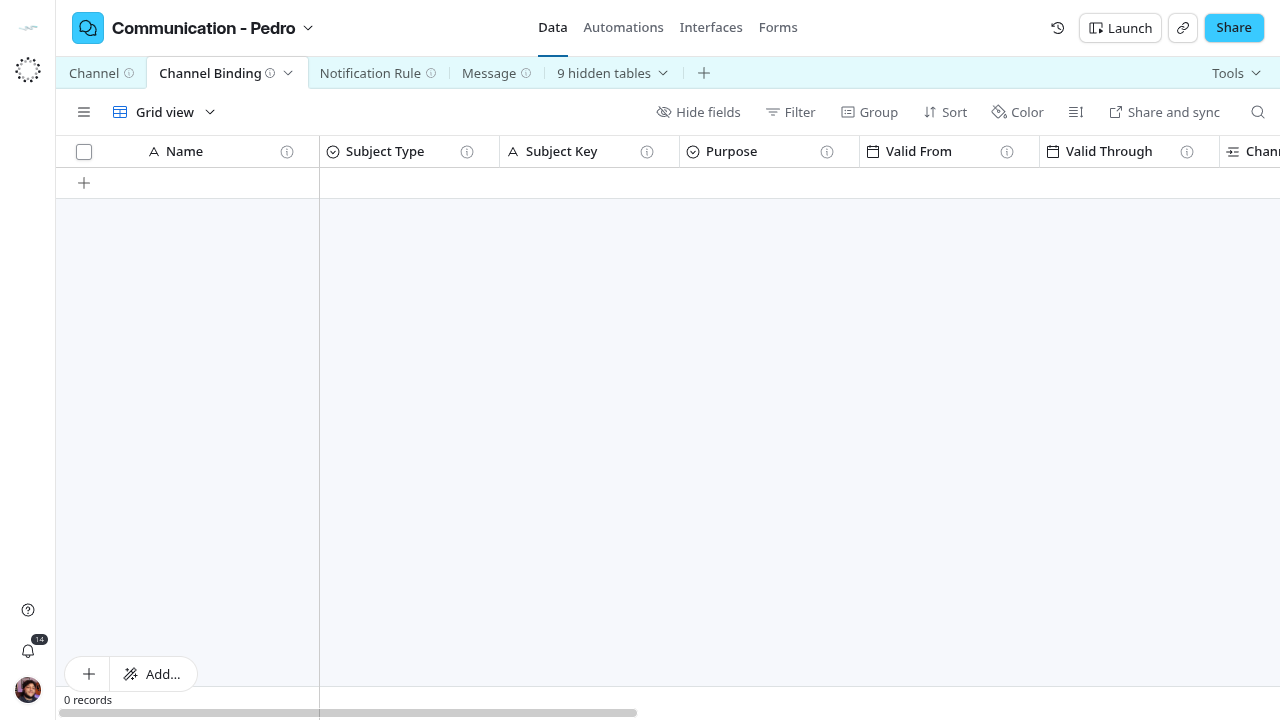
Success: Is Current shows 1 and the channel’s Active Bindings increases. No flow reads bindings yet, so nothing changes in delivery.
Describe the rule
- Open Notification Rule → Grid view and add a row.
- Fill Name with the event and the audience, and Trigger as record type and event.
- Link Record Type when the event is about one record type.
- Write Template with placeholders in curly braces.
- Link Channel and the audience: Audience (Team), Audience (Department) or Audience (Membership). Leave the audience blank when it comes from the record itself.
- Tick Active when the flow that implements the rule is running.
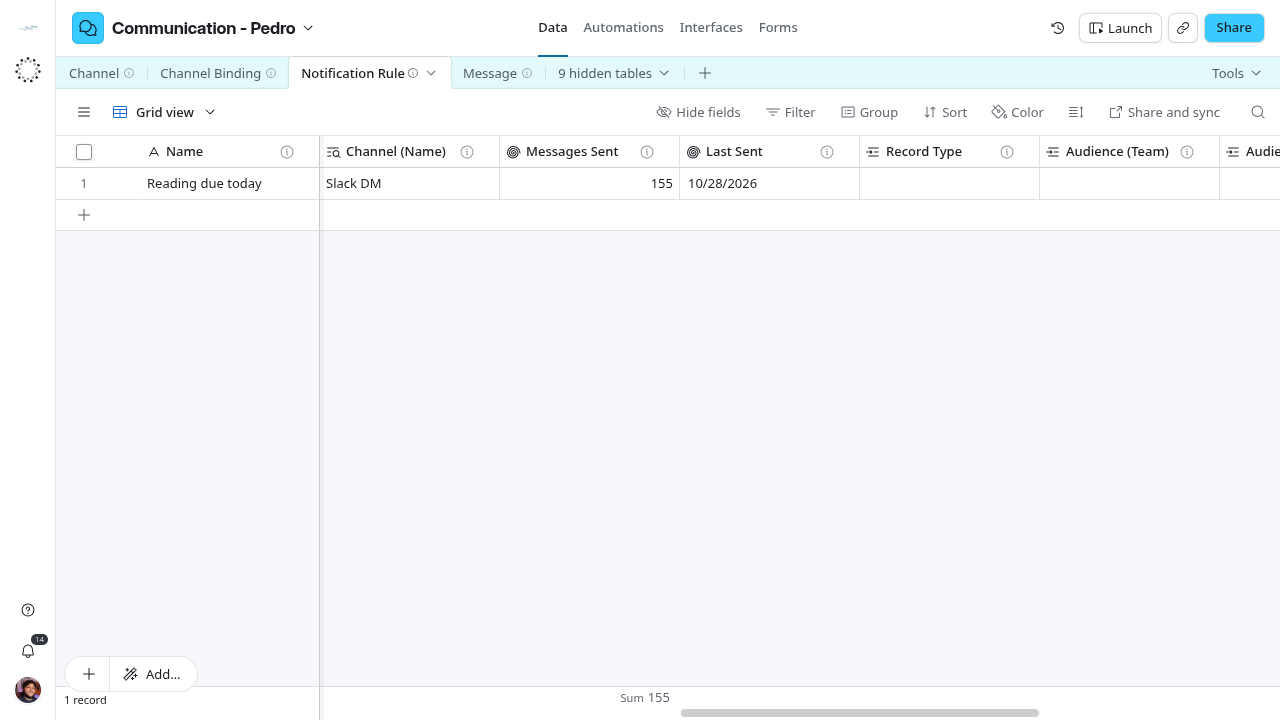
Success: the rule reads as one sentence and its channel is Active. Editing Template or Active does not change the Daily Digest, which builds its own text and runs on its own schedule.
Recover
Fix a wrong link on the row that holds it: Channel on the binding, rule or message, not the inverse column on Channel. End a binding with Valid Through rather than deleting it. Archive a channel instead of deleting it when messages already link to it.
Next steps
Channel · Channel Binding · Notification Rule · Review deliveries